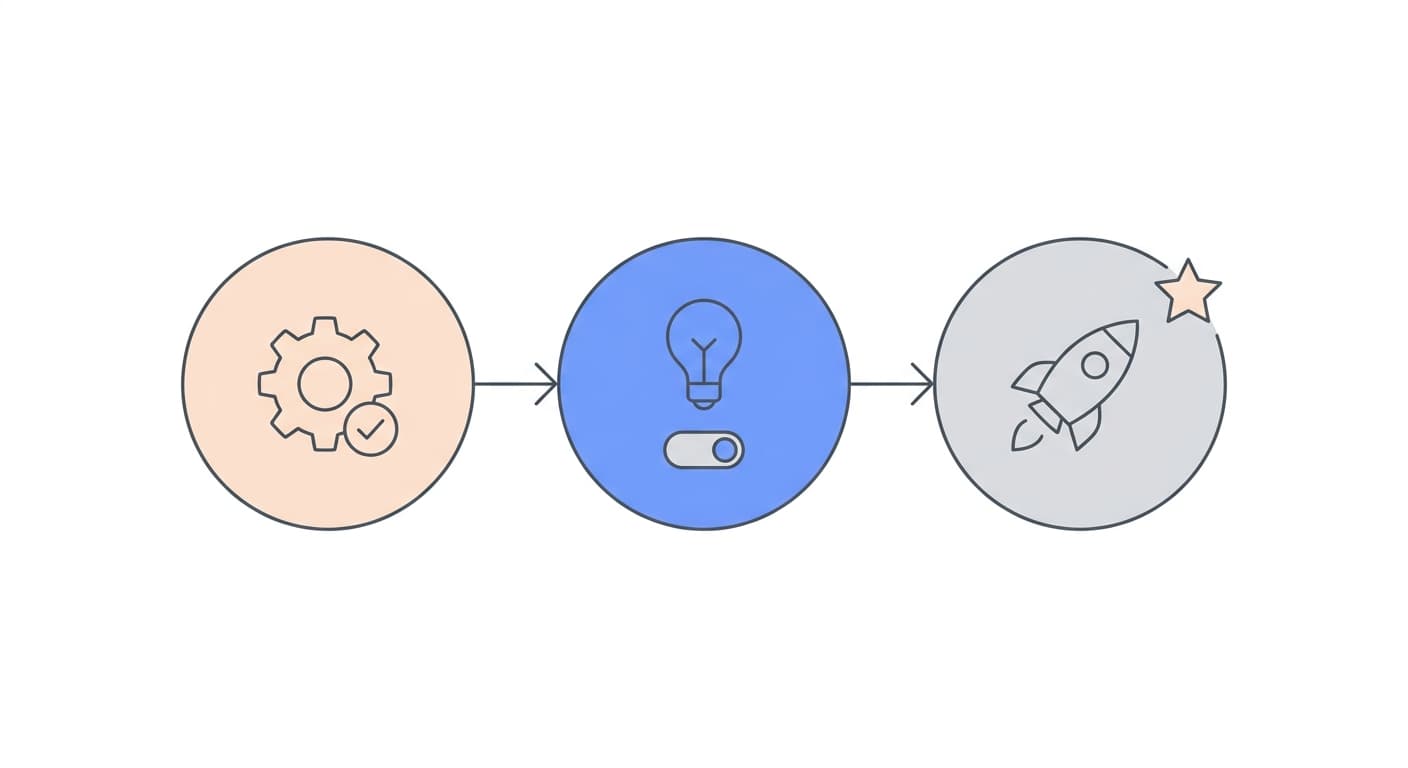
Learn how to download, install, and connect to your first remote device using GoDeskFlow. No complex setup, no VPN, no port forwarding, just download and go.
Getting started with remote access doesn't have to be complicated. With GoDeskFlow, you can go from zero to fully connected in under a minute. Start by downloading the client from our download page, it's available for Windows, macOS, Linux, and Android. The installer is lightweight (under 20 MB) and doesn't require administrator privileges on most systems.
Once installed, GoDeskFlow automatically generates a unique device ID and a one-time password. Share these with the person who needs to connect, or enter them yourself if you're connecting to another machine. There's no account creation required for basic use, no firewall rules to configure, and no port forwarding to set up. The connection is established through our relay network over port 443, which means it works even on restrictive corporate networks.
For unattended access, say you want to connect to your office computer from home, simply set a permanent password in the settings. This lets you connect anytime without someone on the other end to accept the request. You can manage multiple devices from a single dashboard, making it easy to switch between your work PC, home server, or a client's machine.
Pro tip: bookmark your most-used devices for one-click access. If you're managing more than a few devices, our Pro plan at $9.90/month adds features like session recording, priority relay servers, and unattended access. But for personal use and quick support sessions, the free tier covers everything you need.